
A post is better with a picture in it, and the tool takes pictures, video, audio and files the same way: a button in the formatting bar, and then either something already on your site or something on your computer. The part worth knowing is the first half of that sentence, because a picture you have used once never needs uploading again. If you have not written a post before, How to add a blog post on an Avistra website covers the rest of the panel. Adding anything to a post needs your passkey, the same as every other change.
The buttons
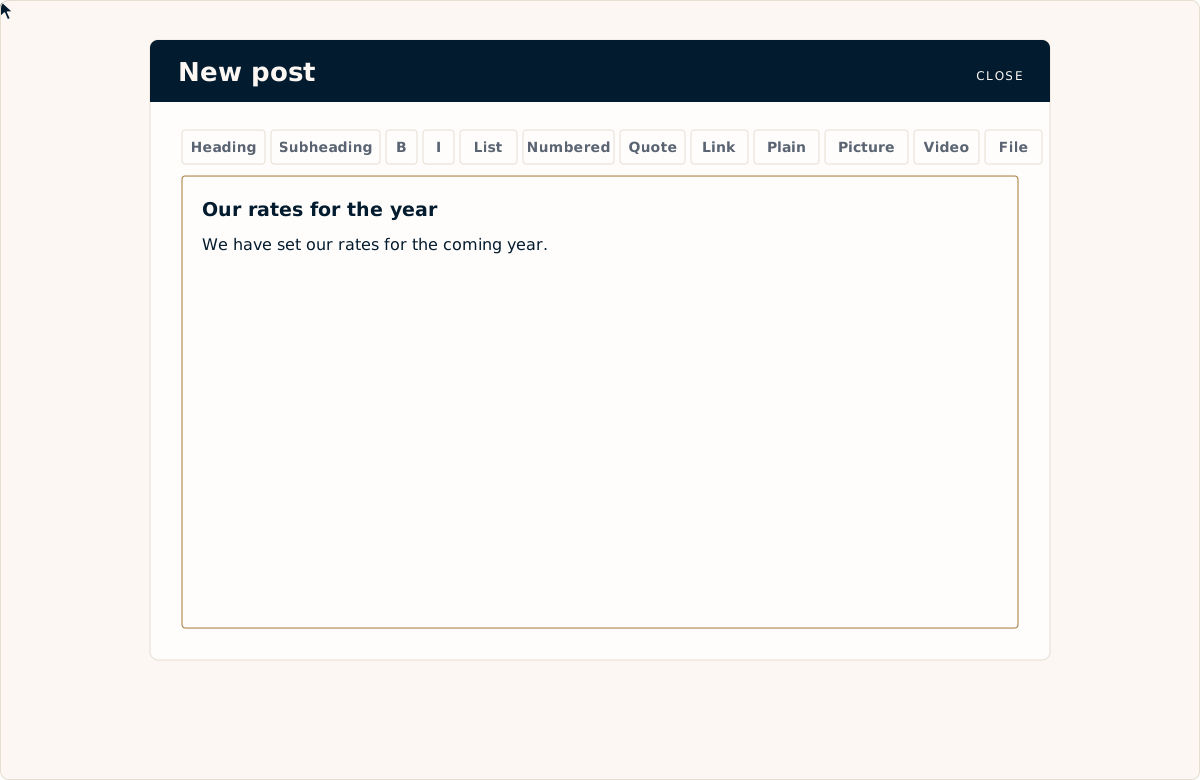
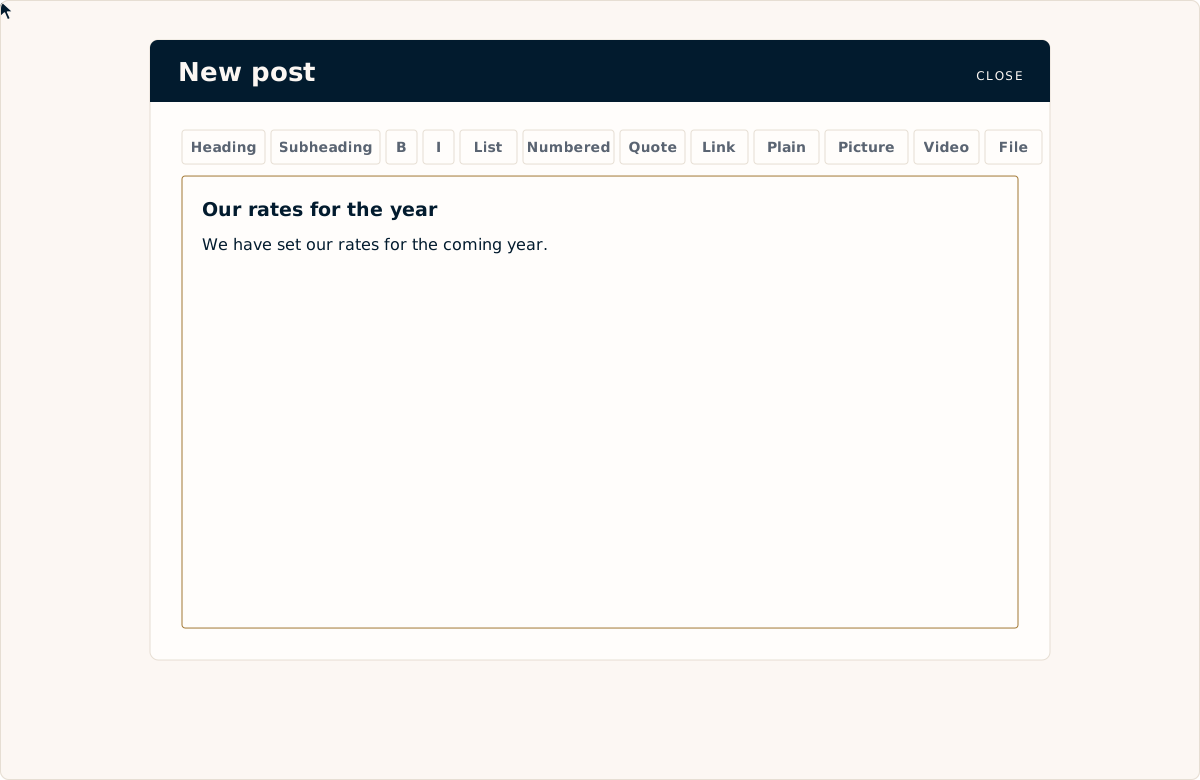
Along the top of the writing box, after the formatting buttons, are three more: Picture, Video and File. Put the cursor where the thing should go, then choose the button. Whatever you pick lands at the cursor, in the middle of the words, and the words carry on underneath it.
- Picture takes the usual photo files: JPEG, PNG, WebP, GIF.
- Video takes video and audio, and they play on the page.
- File is everything else worth handing somebody: a PDF price list, a form to fill in, a menu.
Something already on the site
Choose Picture and the tool does not go straight to your computer. It shows what is already on your site: every picture that has been used in a post, newest first, with a box at the top to find one by name.
Pick one and it goes into the post. Nothing is copied and nothing is uploaded; the post simply points at the same picture the other post uses. That is the point of it. The same photo of the shop front can be in five posts, uploaded once, and if you have forgotten whether you already have a picture of the van, this is where you find out.
Something new
If the picture is not there yet, Add a new picture at the bottom of the same panel opens your computer or your phone in the ordinary way. Choose the file and it uploads, goes into the post, and joins the library, so the next post can use it without any of this.
Large photos are made smaller on the way in, which is worth knowing because it means you do not have to shrink anything first. Straight off a phone is fine.
Say what the picture shows
Every picture has a line describing it. Write it. It is read aloud to anyone using a screen reader, it stands in when the picture does not load, and search engines read it too.
Describe what is in the frame, plainly, as if to somebody on the phone: "A mown lawn with a cut bed along the fence." Not "picture" and not "lawn care Apex NC" — a description, not a label and not a list of words.
The featured image
Separate from all this is the featured image, further down the post form. That is the picture on the Insights page and at the top of the post itself, the one people see before they have read a word. It can come from the library too, so a picture already in the post can be the featured one without finding the file again.
What it costs you
Nothing on the plan, and nothing in loading time worth worrying about: pictures are served from the same fast network the rest of the site comes from. Use as many as the post is worth. Two good photos beat six that all show the same wall.
If you get stuck
Send it to us. Choose Support request in the bar, attach the pictures, and say where they should go and what they show. How to submit a support request on an Avistra website shows how. That is part of your plan too.